Never lose an hour of work again.
Your drawings save themselves.
AutoSave Expert saves your document for you every few minutes, the moment you pause. It works in AutoCAD and in every AutoCAD-based product (Architecture, Electrical, Map 3D, Mechanical, MEP, Plant 3D, Civil 3D) and in Inventor, for drawings, parts and assemblies, and never gets in your way.
First 100 automatic saves free, no card needed · Works locally, your files never leave your PC · No administrator rights
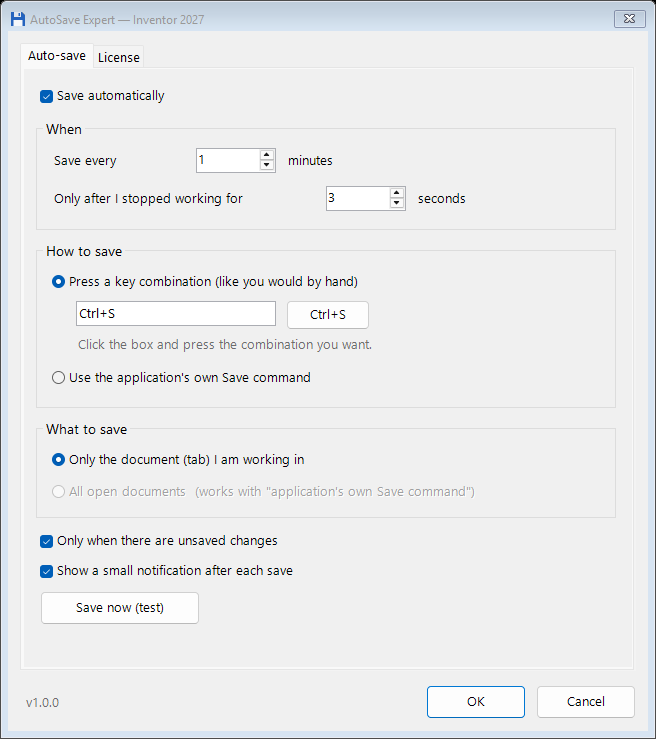
The settings window: interval, key combination (Ctrl+S or your own), and one document or all open documents.
Where to find AutoSave Expert after installing
Restart AutoCAD or Inventor after installation. Then you can reach it here:
In the system tray
A small floppy-disk icon near the clock in the Windows taskbar. Right-click it for Settings, License and Save now.
In Inventor
Tools tab, AutoSave Expert panel. It is there in the Part, Assembly and Drawing environments.
In AutoCAD
Type AUTOSAVEEXPERT on the command line.
Illustration of the tray menu (simplified).
Set it once, then forget about it
Three steps and your work is protected in the background.
Install
Run the small installer. It finds your AutoCAD and Inventor versions and you tick where to install. Restart the application.
Choose interval and key
Pick 1 to 240 minutes (default 5) and whether to press Ctrl+S, another key combination, or use the application's own Save command.
Forget about it
When you pause, the add-in saves your document quietly. You keep working.
Safe saving that stays out of your way
A real save to your real file, not just a backup copy.
Your interval
From 1 to 240 minutes. The default is 5 minutes.
Waits for a pause
It saves only when you have stopped typing and using the mouse for a few seconds and no dialog or command is active.
Ctrl+S or your own key
Presses Ctrl+S for you, any key combination you choose, or uses the application's own Save command.
One document or all
Save only the document or tab you are working in, or all open documents. All-open mode uses the application's own Save command.
Drawings, parts, assemblies
Works with any document that has been saved before. It never opens a Save As dialog.
Local and private
Nothing from your files leaves your PC. Only the license check contacts the internet.
AutoCAD, AutoCAD-based products and Inventor, 2020 and later
Windows 64-bit. Tested by the author on version 2027. Built for 2020 and later; if something does not work in your version, write to support@exportexperttool.com.
Supported
AutoCAD 2020 and later, and the products built on AutoCAD: AutoCAD Architecture, Electrical, Map 3D, Mechanical, MEP, Plant 3D and Civil 3D. They all load the same add-in; the installer detects them as AutoCAD.
Autodesk Inventor 2020 and later.
Not supported
AutoCAD LT (it has no add-in interface), Revit, Fusion, 3ds Max and other Autodesk products.
One small installer
AutoSave Expert 1.0.0 for Windows 64-bit. It installs for the current Windows user and needs no administrator rights. It scans your PC, shows which AutoCAD and Inventor versions it found, and you tick the applications to install into. Restart AutoCAD or Inventor afterwards.
Windows security warning
This release is not yet digitally signed, so Windows SmartScreen may show "Windows protected your PC". Click More info, then Run anyway. You can check that the file is intact with its SHA-256 checksum:
573a5e0e5caabfc920ccd1304776efb4b6ebab231ec09029e71d1e281b0e8bed
Uninstall
Windows Settings, Apps, find AutoSave Expert and click Uninstall. You can also run the installer again.
Try 100 saves free. Then choose.
No card needed for the trial. One license key works on one computer at a time.
Free trial
- All features
- AutoCAD and Inventor
- No card needed
- Get 100 more saves with a review
Monthly
- Unlimited automatic saves
- AutoCAD and Inventor
- 1 computer per key
- Works offline for 14 days
Lifetime
- Unlimited automatic saves
- AutoCAD and Inventor
- 1 computer per key
- Works offline for 14 days
Checkout is handled by Polar, the merchant of record, which also collects any sales tax. After payment you receive your license key by email: paste it in the add-in under Settings → License. The key is activated on this computer; to move it, press Deactivate in Settings → License. After activation the add-in works offline for a 14-day grace period and re-checks the license in the background. If a monthly subscription ends, the add-in returns to the trial-finished state and your settings stay.
Leave a review, get 100 more free saves
After your 100 free saves you can get 100 more by leaving a review. Click Leave a review in the add-in tray menu or on the License tab. The bonus is added once per computer.
Write what you really think – any rating is welcome. The bonus does not depend on the rating.
Send your honest feedback or review to support@exportexperttool.com.
Good questions
Which versions are supported?
AutoCAD 2020 and later (including Architecture, Electrical, Map 3D, Mechanical, MEP, Plant 3D and Civil 3D) and Inventor 2020 and later, on Windows 64-bit. It was tested by the author on version 2027. Built for 2020 and later; if something does not work in your version, write to support. More Autodesk products may follow.
Does it work for parts and assemblies, not only drawings?
Yes. It works for drawings, parts and assemblies, in fact any document that has been saved before.
Will it interrupt me while I work?
No. It saves only when you have stopped typing and using the mouse for a few seconds, and no dialog or command is active.
What if I have never saved the file yet?
It is skipped. AutoSave Expert saves only documents that have been saved before and have unsaved changes, and it never opens a Save As dialog.
Is my data safe? Does it leave my computer?
Everything runs locally and nothing from your files leaves your PC. Only the license check contacts the internet, and it sends your license key, the computer name and an anonymous machine ID.
What happens when the trial ends?
After 100 automatic saves, saving pauses until you enter a license key. You can get 100 more saves by leaving a review, or buy a license (Monthly or Lifetime). Your settings stay.
Can I use one key on several computers?
One key works on one computer at a time. To move it, press Deactivate in Settings, License on the old computer and activate the key on the new one. For several computers, buy one key per computer.
Does it work in AutoCAD LT?
No. AutoCAD LT has no add-in interface, so add-ins cannot run in it.
How do I change the key combination?
Open Settings, go to the Auto-save tab, click the key box and press the combination you want.
How do I uninstall it?
Windows Settings, Apps, AutoSave Expert, Uninstall. You can also run the installer again.
Does it replace AutoCAD's built-in AUTOSAVE?
No. It is an additional, more frequent real save to your actual file. This is different from the built-in backup file (.sv$), which is a separate copy.
How do I get help?
Write to support@exportexperttool.com.