Catch the mistakes before they reach the shop floor.
One click checks your whole design.
Release Check Expert looks at the part, assembly or drawing you have open, and everything it references, and lists what is wrong: duplicate part numbers, parts that still have the template material, empty descriptions, broken references, missing drawings and more. It only reads your files and never changes them.
First 10 check runs free, no card needed · Works locally, your models never leave your PC · No administrator rights
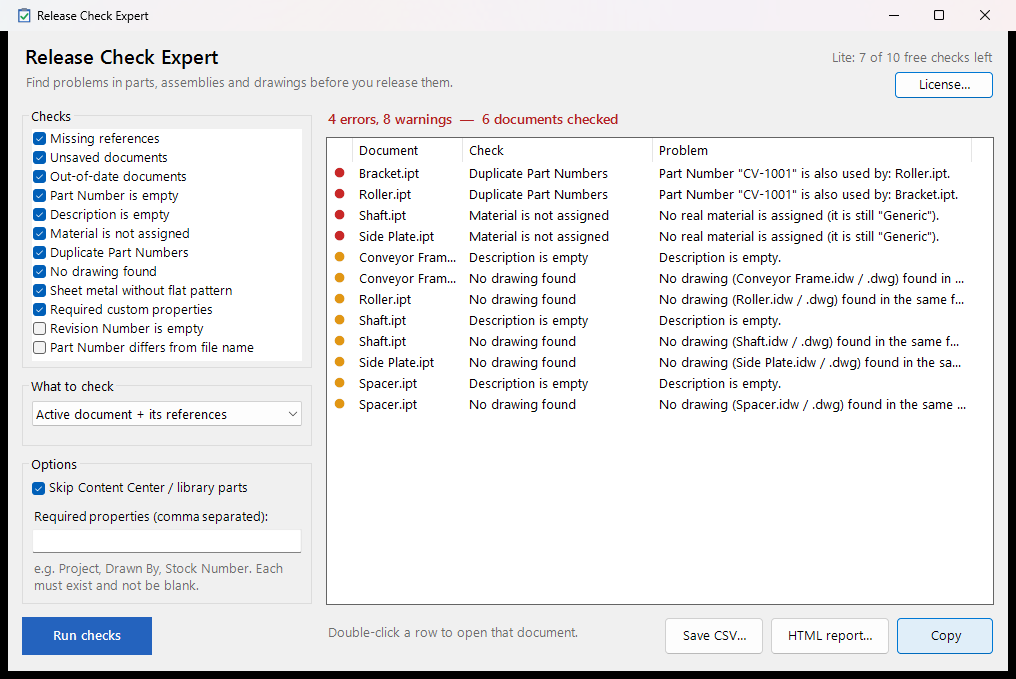
The main window after a check run: errors first, then warnings. Double-click a row to open that document.
Where to find Release Check Expert after installing
Restart Inventor after installation. Then open the Tools tab and look for the Release Check Expert panel with the Release Check button. It is there in the Part, Assembly and Drawing environments.
Check, read, fix, release
Three steps, and it takes seconds even for a large assembly.
Open your design
Open a part, assembly or drawing and click Release Check on the Tools tab. Choose which checks to run and what to check: the active document with its references, the active document only, or all open documents.
Run the checks
Press Run checks. Results appear in one table, errors first, then warnings and notes. Each row says what is wrong and in which document.
Fix and share
Double-click a row to open that document and fix it in Inventor. Save the list as CSV for Excel or as an HTML report to send to your team.
The checks that matter before you release
Switch each check on or off to match how your shop works.
Missing references
Finds referenced files that cannot be found on disk, so you do not discover them when someone else opens the assembly.
Unsaved and out-of-date
Flags documents with unsaved changes or that were never saved, and documents that need an update or rebuild, including drawings.
Empty properties
Part Number and Description must not be blank. Revision Number is available as an optional check.
Material not assigned
Catches parts that still have the template material (“Generic” or “Default”) or none at all.
Duplicate part numbers
Finds the same Part Number used by different parts or assemblies and tells you which files share it.
No drawing found
Looks for an .idw or .dwg with the same name next to the model and warns when there is none.
Sheet metal without flat pattern
Warns about sheet metal parts that have no flat pattern yet, before they go to the laser or press brake.
Your required properties
Type the properties your company requires, such as Project or Drawn By. Each one must exist and not be blank.
Part Number vs file name
An optional note when the Part Number differs from the file name. Off by default.
CSV and HTML reports
Copy rows, save a CSV that opens in Excel, or create a clean HTML report with the counts and every problem.
Read-only
It never saves, edits or renames your files. Library and Content Center parts are skipped by default.
Local and private
Nothing from your models leaves your PC. Only the license check contacts the internet.
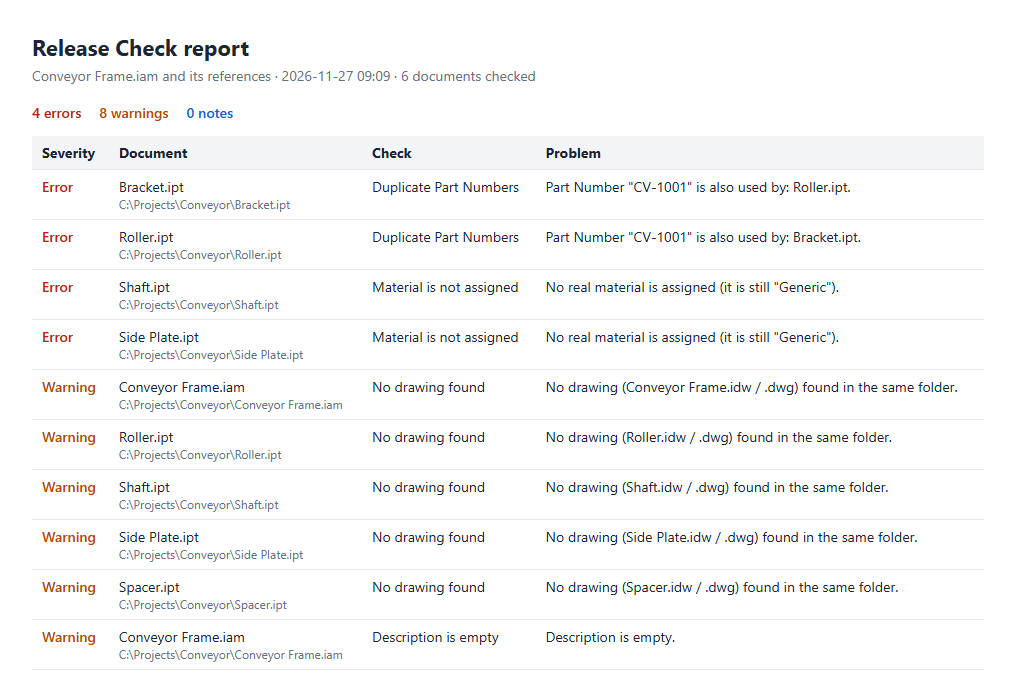
The HTML report: counts at the top, then every problem with its document and path.
Autodesk Inventor 2022 and later
Windows 64-bit. Tested by the author on Inventor 2027. Built for 2022 and later; if something does not work in your version, write to support@exportexperttool.com.
One small installer
Release Check Expert 1.0.0 for Windows 64-bit. It installs for the current Windows user and needs no administrator rights. Close Inventor first, run the installer, then start Inventor again.
Security warnings: please read
This release is not yet digitally signed. That has two effects:
Windows SmartScreen may show “Windows protected your PC”. Click More info, then Run anyway.
Inventor may block the add-in the first time and show an “Add-in Manager Security Alert” saying it could not be authenticated. This is Inventor’s normal behaviour for any add-in without a paid code-signing certificate. The add-in is safe to use; here is how to allow it, step by step:
- Start Inventor. If the security alert appears, click OK.
- Open the Tools tab and click Add-Ins (in the Options panel) to open the Add-In Manager.
- Select Release Check Expert in the list.
- Under Load Behavior, clear the Block box and tick Load Automatically.
- Click OK. If the Release Check button is not on the Tools tab yet, restart Inventor.
You normally do this once per computer. If Inventor blocks the add-in again after an update, repeat the steps. Your files are never changed by the add-in.
You can check that the file is intact with its SHA-256 checksum:
1a287481a6c17747af91ef503e269b750fd4e65b00af7af84a8d120f1205bb15
Uninstall
Windows Settings, Apps, find Release Check Expert and click Uninstall. You can also run the installer again.
Try 10 check runs free. Then choose.
No card needed for the free runs. One license key works on one computer at a time.
Lite
- All checks and reports
- CSV and HTML export
- No card needed
- After 10 runs a Pro license is needed
Pro · Monthly
- Unlimited check runs
- All checks and reports
- 1 computer per key
- Works offline for 14 days
Pro · Yearly
- Unlimited check runs
- All checks and reports
- 1 computer per key
- Works offline for 14 days
Checkout is handled by Polar, the merchant of record, which also collects any sales tax. After payment you receive your license key by email: paste it in the add-in under License. The key is activated on this computer; to move it, press Deactivate in the same window. After activation the add-in works offline for a 14-day grace period and re-checks the license in the background. If a subscription ends, the add-in returns to the finished-Lite state and your settings stay.
Good questions
Does it change my files?
No. The checks only read information from documents that are already open in Inventor. It does not save, edit, rename or delete anything. If a document is not open, double-clicking a row opens it, nothing more.
What exactly does it check?
Missing references, unsaved documents, out-of-date documents, empty Part Number and Description, parts without a real material, duplicate Part Numbers, models without a drawing next to them, sheet metal parts without a flat pattern, and the custom properties you list as required. Revision Number and Part Number vs file name are optional and off by default.
Why is “Part Number is empty” rarely reported?
By default Inventor fills the Part Number with the file name, so it is seldom truly blank. To catch parts whose Part Number was never set on purpose, use the optional Part Number vs file name check or list the property you care about under required properties.
How does the drawing check work?
It looks for a file with the same name and an .idw or .dwg extension in the same folder as the model. If your drawings live in another folder, switch this check off.
What are the Lite limits?
Lite includes your first 10 check runs. Every press of Run checks counts as one run. After that a Pro license is needed to run checks again. All checks and reports work the same in Lite and Pro.
Which versions are supported?
Autodesk Inventor 2022 and later on Windows 64-bit. It was tested by the author on Inventor 2027. If something does not work in your version, write to support.
Why does Inventor block the add-in?
Inventor blocks add-ins that do not carry a digital signature from a paid certificate. We keep the price low instead of paying for one, so you allow the add-in once in the Add-In Manager. The step-by-step guide is in the Download section.
Is my data safe? Does it leave my computer?
Everything runs locally and nothing from your files leaves your PC. Only the license check contacts the internet, and it sends your license key, the computer name and an anonymous machine ID.
Can I use one key on several computers?
One key works on one computer at a time. To move it, press Deactivate in License on the old computer and activate the key on the new one. For several computers, buy one key per computer.
How do I uninstall it?
Windows Settings, Apps, Release Check Expert, Uninstall. You can also run the installer again.
How do I get help?
Write to support@exportexperttool.com.